17th Apr 2026
Best Portable Monitors for Mac Mini in 2026
A portable monitor can make a big difference if you are using a Mac Mini and want to enhance your workspace. In 2026, remote work and multitasking are the norm, and portable screens play a key role in boosting productivity.
With a portable monitor, you can expand your display, making it easier to manage multiple applications without constantly switching between windows.
This guide explores the best portable monitors for Mac Mini users, how to set them up, and what features matter most.
Why Do You Need a Portable Monitor for a Mac Mini?
Expand Screen Space: A portable monitor allows you to work with multiple applications at once.
Increase Productivity: Keep communication tools on one screen and work on another for better workflow efficiency.
Work Anywhere: Lightweight and travel-friendly, portable monitors are perfect for remote professionals.
Better Ergonomics: Adjust monitor height and position to reduce neck strain.
Mac Mini Display Support Explained (M1, M2, M3)
M1 Model: Supports up to two displays (Thunderbolt + HDMI).
M2 & M3 Models: Support multiple displays via Thunderbolt (USB-C) and HDMI, offering better flexibility.
These capabilities make the Mac Mini incredibly powerful when paired with a portable monitor.
Types of Portable Monitors Compatible with Mac Mini
USB-C Monitors
USB-C monitors transmit power and video through a single cable, making setups cleaner and more efficient.
For stable performance, use accessories like USB-C cable bundles or USB-C adapters.
HDMI Monitors
HDMI monitors are reliable and widely compatible, especially for older setups.
Use high-quality HDMI cables for stable connections.
Touchscreen Monitors
Touchscreen monitors are ideal for creatives, offering interactive control for design, presentations, and editing.
Key Features to Look For
Resolution & Screen Size
Full HD works for most users, while 4K is better for creatives. A 15.6-inch display offers the best balance of portability and usability.
Panel Type (IPS vs OLED)
IPS: Better colour accuracy and viewing angles.
OLED: Superior contrast and deeper blacks.
Brightness & Colour Accuracy
Choose monitors with at least 300 nits of brightness and accurate colour reproduction for professional work.
Refresh Rate
60Hz is fine for general use, while 120Hz–144Hz is better for gaming and smooth visuals.
Connectivity Options
USB-C is the most convenient option. Ensure HDMI support for broader compatibility.
Top Portable Monitors for Mac Mini in 2026
Here are some of the best portable monitors for Mac Mini users:
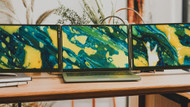
- Monduo Pro Duo (14” / 16”): 2K resolution, 144Hz, USB-C & HDMI – Best for multi-screen productivity. View 16-inch model | View 14-inch model
- Asus ZenScreen MB16AC: Best for portability
- AOC I1659FWUX: Budget-friendly option
- Lepow Z1-Gamut: Good for creatives
- ViewSonic TD2230: Touchscreen experience
- GeChic 1503H: Ideal for travel
The Monduo Pro Duo stands out by offering a triple-screen experience, making it ideal for professionals.
How to Set Up a Portable Monitor with Mac Mini
- Choose a monitor: Based on your needs.
- Connect via USB-C or HDMI: Plug-and-play setup.
- Adjust display settings: Extend your screen.
- Position ergonomically: Maintain eye-level comfort.
- Organise your workflow: Use the extra space efficiently.
Common Problems & Fixes
- No signal: Check cables and ports.
- Try another cable or port if needed.
- Adjust resolution in system settings.
Is a Portable Monitor Worth It for Mac Mini?
Yes – portable monitors significantly improve productivity, organisation, and flexibility. They are essential for professionals who multitask or work remotely.
If you want a powerful setup, explore the Monduo portable monitor collection.
Frequently Asked Questions
Can I use any portable monitor with a Mac Mini?
Yes, as long as it supports USB-C or HDMI.
What size is best?
15–17 inches is ideal for most users.
Are portable monitors good for creative work?
Yes, especially IPS or 4K displays for accurate colours.
How do I connect a monitor?
Use USB-C or HDMI for a quick setup.
Are they good for gaming?
Yes, but be sure to choose high refresh rate monitors for better performance.