
Posted by Angela Lee on 10th Dec 2025
Best Portable Monitor in 2026: Buying Guide and Top Picks
A portable monitor is one of the simplest upgrades you can make to a laptop. One cable and a few seconds of setup give you the extra screen space of a desk monitor, wherever you work. But "portable monitor" now covers everything from basic single screens to full tri-screen systems, so choosing the right one depends on how you actually work.
This guide explains the main types of portable monitor, the specs that matter (and the ones that don't), how to match a monitor to your laptop, and which setups suit different kinds of work.
What is a portable monitor?
A portable monitor is a lightweight external display designed to travel with your laptop. Most connect over USB-C, which can carry video and power through a single cable, so you don't need a separate power adapter. Some also accept HDMI for laptops without a video-capable USB-C port.
Portable monitors fall into three broad groups:
- Single-screen portable monitors: one extra display that sits beside your laptop on its own stand or case.
- Dual-screen and attachable monitors: screens that mount to the laptop itself, so they move with it and stay aligned.
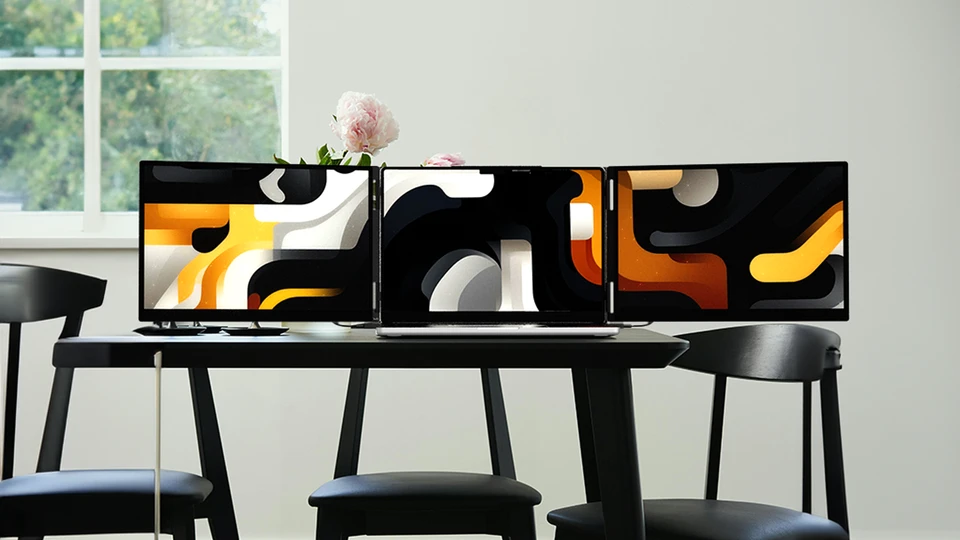
- Tri-screen systems: two screens that attach on either side of your laptop, turning it into a three-screen workstation. The Monduo Pro Duo is an example.
What to look for in a portable monitor
1. Size: match it to your laptop
For attachable and tri-screen monitors, size matters most. The extra screens should line up with your laptop's own display. As a rule, choose a 14" system for 14" to 15.6" laptops and a 16" system for larger 15.6" to 17.3" laptops. For a single side-screen, 14" to 16" is the sweet spot between workspace and portability.
2. Resolution and aspect ratio
Aim for at least 2K. A 2560 x 1600 resolution keeps text sharp and matches the 16:10 shape of most modern laptops, including MacBook Pro, so windows look consistent as they move between screens.
3. Brightness and colour
Around 500 nits keeps a screen readable in bright offices and cafés. If you edit photos or video, look for wide colour coverage such as 100% DCI-P3, so your extra screens match your laptop's display.
4. Refresh rate
60Hz is fine for documents and spreadsheets. A 144Hz panel makes scrolling, cursor movement and gaming noticeably smoother. It's a real upgrade if you spend all day looking at the screen.
5. Connectivity and power
Check your laptop's ports before you buy. USB-C ports must support video output (DisplayPort Alt Mode or Thunderbolt). Data-only USB-C ports and USB-A ports won't drive a display. If your laptop has HDMI, an HDMI connection plus USB-C power is a common alternative. Pass-through charging, where your charger plugs into the monitor and powers the laptop through it, saves a port and keeps your setup tidy.
6. Weight and build
Single screens are lightest, but they need table space and their own stand. Attachable systems weigh more because they carry two screens and a mounting frame, but they set up in one piece and stay aligned with your laptop. Look for sturdy hinges and a built-in kickstand for stability.
7. Software
Good companion software makes a big difference. Look for an app that syncs brightness and resolution across screens and arranges displays automatically, so your setup works the same every time you plug in.
Which type of portable monitor is right for you?
- Light, occasional use: a single portable screen is enough for a second window during travel.
- Heavy multitasking (developers, analysts, traders, remote teams): a tri-screen setup keeps your main work centred with reference material and communication on either side. See our complete tri-screen setup guide.
- Creative work: prioritise colour accuracy (100% DCI-P3), brightness and resolution.
- Frequent travel: balance screen size against weight and setup time. See our guide to the best travel portable monitors.
- MacBook users: check Apple silicon display support for your model. See portable monitors for MacBook.
Not sure how many screens your laptop can run? Read how many portable monitors your laptop can support.
Our pick for multitaskers: the Monduo Pro Duo
If you want the most workspace from a laptop, the Monduo Pro Duo adds two screens, one on each side, for a three-screen setup that folds away into one unit.
- Two 2560 x 1600 displays in a 16:10 aspect ratio
- 144Hz refresh rate with a 3ms response time
- 500 nits brightness and 100% DCI-P3 colour
- Two USB-C ports and one Mini-HDMI port per display, with up to 100W pass-through charging
- The Monduo app for macOS and Windows, which syncs brightness, resolution and display arrangement with your laptop
- A built-in kickstand for stability
It comes in two sizes. The 14-inch Pro Duo has an aluminium housing and glass screens, for 14" MacBook Pro and 14" to 15.6" PC laptops. The 16-inch Pro Duo has a durable plastic build with non-glare screens, for 16" MacBook Pro and 15.6" to 17.3" PC laptops. For a side-by-side look at the two, see our 14" vs 16" Pro Duo comparison.
Weighing up alternatives? See how the Pro Duo compares with the Mobile Pixels Trio and the Xebec Tri-Screen 3.
Portable monitor vs laptop screen extender
"Screen extender" usually means a monitor that attaches to your laptop, while "portable monitor" can mean any lightweight external display. Extenders win on alignment and setup speed; standalone portable monitors win on flexibility and weight. Our portable monitor vs screen extender guide covers the trade-offs in detail.
Common problems and quick fixes
- No signal: make sure the USB-C port and cable support video output (DisplayPort Alt Mode or Thunderbolt), and that every cable is fully seated.
- Flickering or dimming: usually a power issue. Plug your laptop into power, or use the monitor's power-only USB-C connection to supply the screens.
- Wrong scaling or blurry text: set each display to its native resolution, or let the Monduo app match your laptop's resolution and scaling automatically.
- Cursor jumps between screens oddly: rearrange the displays in your system settings so they match their physical position.
For step-by-step setup, see how to add a second screen to your laptop.
Frequently asked questions
What is the best portable monitor in 2026?
It depends on how you work. For light use, a single portable screen is enough. For serious multitasking, a tri-screen system such as the Monduo Pro Duo gives you the most workspace, with two 2560 x 1600, 144Hz displays that attach to your laptop.
What size portable monitor should I buy?
Match it to your laptop: a 14" system for 14" to 15.6" laptops, and a 16" system for 15.6" to 17.3" laptops. Matching sizes keeps the screens aligned and comfortable to use.
Do portable monitors need a separate power supply?
Usually not. Over a video-capable USB-C port, one cable carries video and power. With an HDMI connection you'll also need a USB-C cable for power.
Are portable monitors good for gaming?
Yes, if you choose a high refresh rate. A 144Hz panel with a fast response time, like the Pro Duo's 3ms, keeps motion smooth.
Can I charge my laptop through a portable monitor?
Some models support pass-through charging. The Monduo Pro Duo supports up to 100W, so you can plug your laptop charger into the display and charge while you work.
What's the difference between the 14-inch and 16-inch Pro Duo?
The 14-inch model has an aluminium housing with glass screens and suits 14" to 15.6" laptops. The 16-inch model uses a durable plastic build with non-glare screens and suits 15.6" to 17.3" laptops. Both have 2560 x 1600, 144Hz, 500-nit displays.


